Getting started with the Cleanster Home app: first-time walkthrough

The Cleanster Home app includes a short first-time walkthrough on the Home screen. This page goes through each step. You can tap Überspringen at any time to end the tour.
This article is for the new Cleanster Home app. Existing Home help articles stay available while we phase in this new flow.
The screenshots below are from Light mode. The walkthrough looks the same in Dark mode, with the same steps, buttons, and highlights.
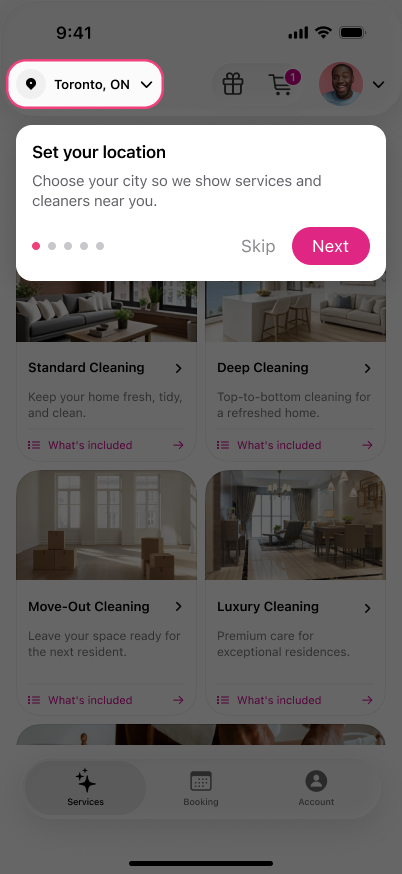
Step 1: Set your location
The tour first points to the city at the top left of Home, for example Toronto, ON. Tap it to choose your city so we show services and cleaners near you.
Then tap Nächste to continue, or Überspringen to end the tour.
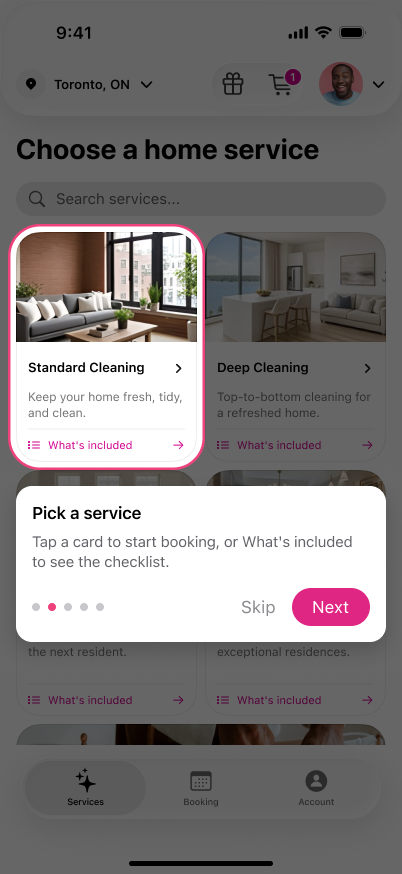
Step 2: Pick a service
Home shows service cards, including Standardreinigung, Tiefenreinigung, Auszugsreinigung, Und Luxury Cleaning. Tap a card to start booking, or tap What’s included Um die Checkliste einzusehen.
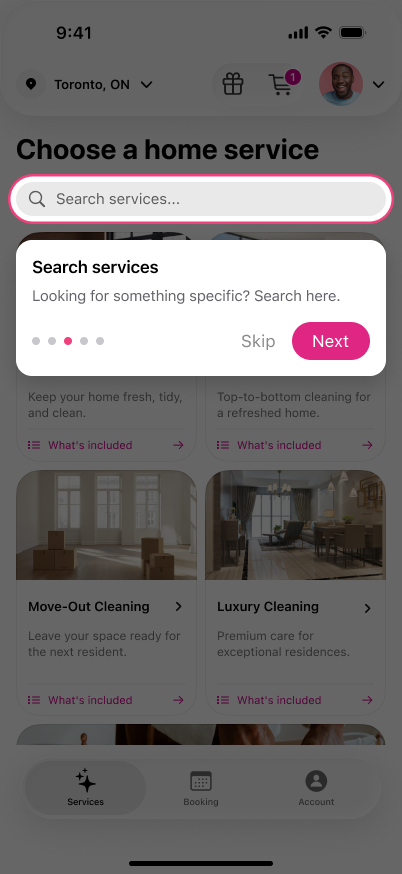
Step 3: Search services
The tour then points to the search bar. If you’re looking for something specific, search here.
Step 4: Gifts and cart
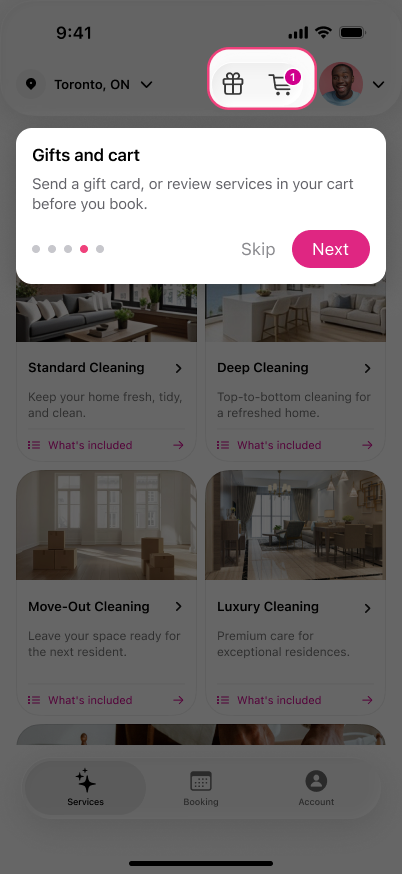
The tour points to the gift icon and the cart icon at the top of Home. The overlay says: “Send a gift card, or review services in your cart before you book.”
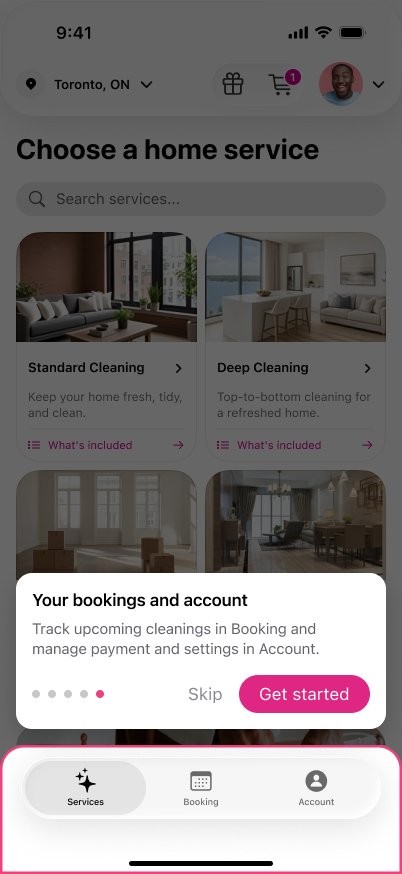
Step 5: Your bookings and account
The last step highlights the tabs at the bottom of the screen: Services, Buchung, Und Konto. Use Buchung to track upcoming cleanings, and Konto to manage payment and settings.
Klopfen Get started to finish the tour and go to Home, or tap Überspringen.